🎥 How to Add a YouTube Video to Your SignageFlow Playlist
Managing video content in SignageFlow is quick and effortless. In this guide, we’ll walk you through how to add a YouTube video to your playlist and control exactly how long it plays on screen.
Step 1: Copy the YouTube Video Link
Start by opening YouTube and selecting the video you want to display.
Copy the video URL from the browser’s address bar.
Step 2: Add the Video to Media Library
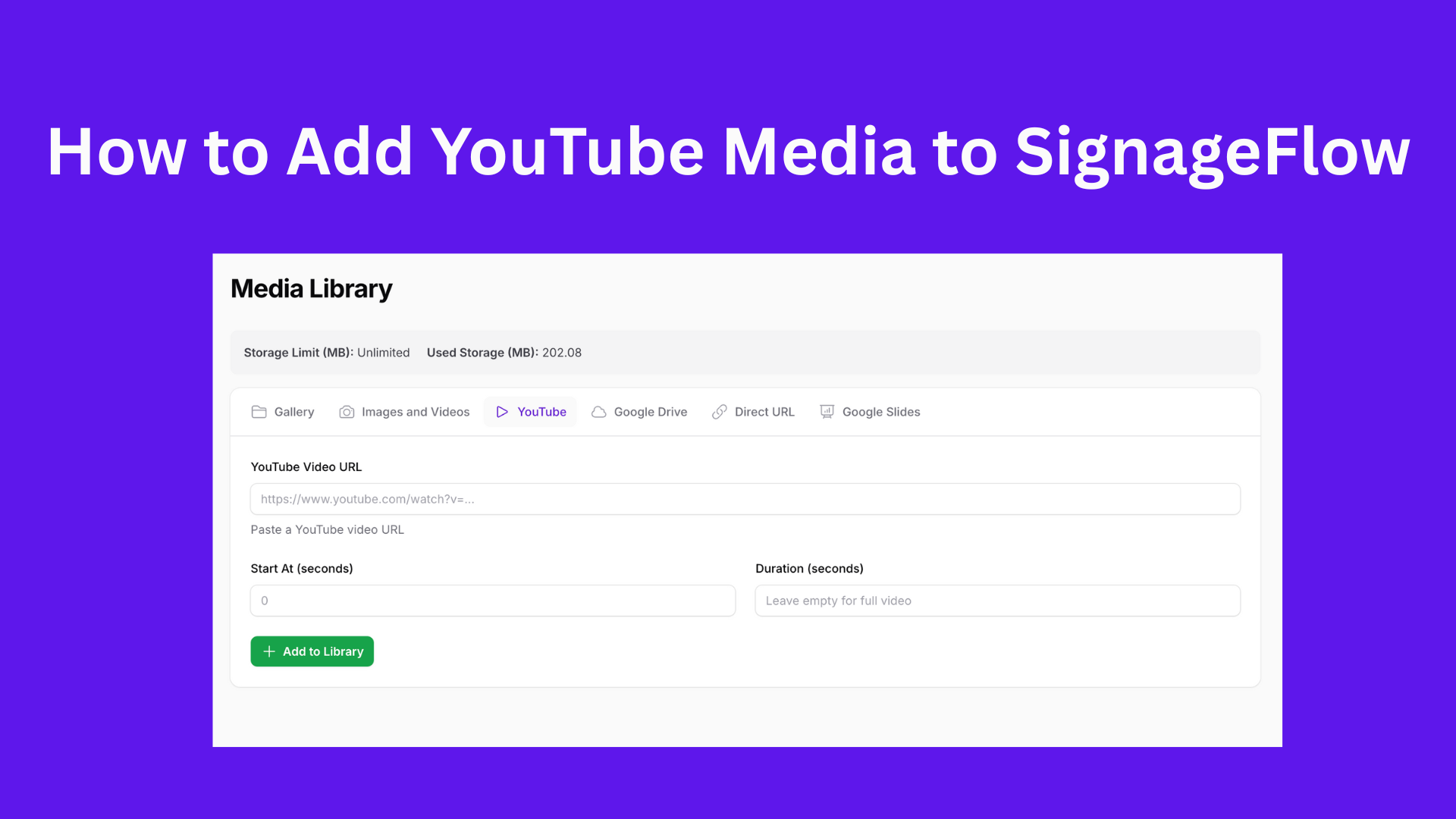
Now head back to SignageFlow and open the Media Library.
-
Select YouTube as the media type
-
Paste the copied YouTube link
-
You’ll see options to control playback timing
-
You can choose when the video starts and how long it plays
-
If needed, you can skip this step and adjust it later
Click Add to Library once done.
Your YouTube video is now saved and ready to use.
Step 3: Add the Video to a Playlist
Go to Playlists and either:
-
Select an existing playlist, or
-
Create a new one
Click Add Media, choose your YouTube video, and then click Insert Media.
Step 4: Set the Video Duration
By default, the duration will show 00 seconds, which means the system assumes 10 seconds of playback.
To customize it:
-
Go back to the media item
-
Check the actual video length
-
Update the duration accordingly
For example, if your video is 33 seconds long, simply set it to 33 seconds.
✅ That’s It!
Your YouTube video will now play for the specified duration and automatically move to the next item in the playlist.
With SignageFlow, managing video content is simple, flexible, and designed for smooth playback across all your screens.
⚠️ Important Note
If the screen is running in offline mode, YouTube videos will be skipped automatically, as they require an active internet connection to play.